
How to Install, Step by Step
- 1. Download the latest Winlator APK from the official GitHub releases page. Grab the newest stable version, not the experimental ones.
- 2. Install it. Android will warn about apps from unknown sources; allow it for this install. You downloaded the real file from the official source, so this is fine.
- 3. Open the app. The first launch does some setup. Give it a minute.
- 4. Create a container. The app will offer to make one. Accept the default settings for now; you can change everything later.
Your First Container
A container is Winlator's version of a little Windows computer. It has its own fake C: drive, its own settings, and its own list of installed programs, all stored as files inside your Android storage.
When you launch a container, a Windows-style desktop appears on your phone screen, complete with a taskbar and icons. From there:
Copy your game or installer onto the phone: from your PC, over a cable, or from wherever you keep it. Your phone's storage shows up inside Winlator as a drive, so the files are easy to find.
Run the installer. Double-tap the .exe, exactly like on a PC. A normal Windows install window appears. Install the game.
Launch it. The game gets a shortcut on the container's desktop. Tap it, and it opens in a window or fullscreen, your choice.
The magic moment is the first time a Windows install wizard pops up on your phone. It never stops feeling slightly wrong, in the best way.
The reason for having multiple containers is because each one holds different settings. Serious users keep one tuned container per game, one set up for a 2D indie title, another with different graphics settings for Skyrim. Containers are cheap: create, tweak, delete, repeat until a game runs its best.
Controls
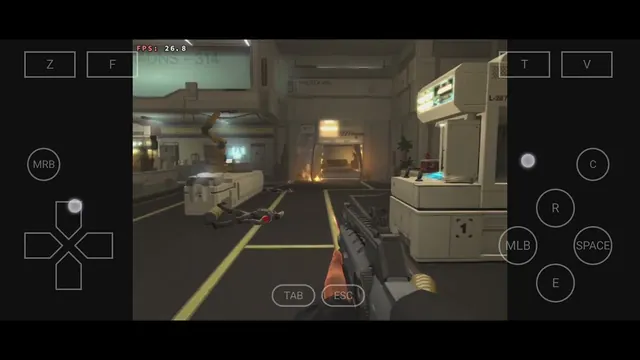
Windows games expect a keyboard and mouse, and that's the honest recommendation here:
A Bluetooth keyboard and mouse turn Winlator from "impressive demo" into "actually playable." This is the setup worth having.
Game controllers work too — many games map nicely to one.
USB-C or OTG accessories also connect fine, if you'd rather go wired.
There's an on-screen keyboard for typing, but you don't want to play a shooter with it.
On a tablet with a keyboard, the whole thing clicks into place as a small Windows machine.
Quick Tips
If a game runs rough, try these in order; each one is a container setting, changed in seconds:
Lower the screen resolution. The single biggest speed gain, almost every time. A container rendering at 720p instead of your phone's full resolution runs dramatically smoother.
Use DXVK as the DirectX wrapper for most games. Switch to WineD3D if a specific game misbehaves; it's slower but more forgiving.
Try the Box64 presets. Performance mode for speed, Compatibility mode when a game crashes.
Close background apps. Your browser with 40 tabs is eating the RAM your game needs.
Update Winlator itself. Each release genuinely improves performance and compatibility. A game that failed on the version you installed in spring may simply work on the current one.
Keep expectations matched to your hardware. A flagship chip plays Skyrim. A budget chip plays Stardew Valley. Both are wins.